Have you ever wondered why an otherwise great image from Stable Diffusion still shows odd text or strange details?
This short 5 min read shows you how the right negative prompts can cut distracting artifacts from your ai-generated images and art.
You’ll learn a simple negative prompt approach that Stable Diffusion users rely on to keep quality high. Spend a little time refining your prompt and you’ll see cleaner generated images and fewer stray marks in each image.
This guide focuses on practical steps you can use now. In about five minutes, you can apply techniques that reduce common artifacts and improve overall content and text clarity.
Key Takeaways
- Using targeted negative prompts reduces artifacts in Stable Diffusion output.
- Refining your prompt for one minute at a time boosts image quality.
- Clear text and fewer stray marks make ai-generated images look professional.
- Apply these tips in a single 5 min read to see quick improvements.
- Consistent practice transforms your generated art and saves time.
Understanding the Role of Negative Prompts
Telling the model what not to include gives you stronger control over the final image.
What are Negative Prompts
A negative prompt acts as a simple filter you add to a prompt to exclude specific items from an image. It tells Stable Diffusion to skip unwanted elements so the model focuses on the features you care about.
For example, if you want a serene landscape without buildings, include a clear exclusion like “no buildings.” That instruction helps the generation ignore man-made structures and prioritize nature.
How Stable Diffusion Processes Negatives
The model reads exclusions alongside your main prompt and lowers the weight of those concepts during sampling. This reduces stray marks and improves overall results for ai-generated images.
- A negative prompt works like a filter to remove unwanted elements from the output.
- Using exclusions lets you refine content quickly and get more consistent images.
- Clear, specific terms produce better results than vague or long lists.
Tip: Keep exclusion terms short and targeted. That yields faster iterations and more professional final content.
Essential Negative Prompts for General Image Quality
Use a core set of exclusion terms to quickly strip away artifacts and improve image clarity.
Start with universal entries: add terms like “worst quality, normal quality, low quality, low res, blurry” to keep output consistent across Stable Diffusion models.
Include content-specific exclusions for clean results. Add “text,” “watermark,” and “logo” to stop stray marks and unwanted overlays in your images.
These simple rules help filter artifacts and blurry elements. They matter most when you generate a busy landscape or detailed scene.
“Consistent exclusions lead to fewer iterations and higher final quality.”
- Apply the same set across different models to save time.
- Keep the list short so the model focuses on key elements.
- Review outputs and tweak words like “low res” or “blurry” if needed.
Tip: Use these negative prompts as a baseline. With consistent use, your Stable Diffusion images will show fewer artifacts and better overall quality.
Mastering Negative Prompts NSFW and Content Filtering
Keep your outputs safe and professional by adding clear exclusions that block explicit content.
Maintaining Safety Standards
You should use targeted exclusion lines to prevent explicit material from appearing in your visuals. Effective negative prompts protect audiences and preserve your brand reputation.
In a quick 1 min read, remember that these settings also cut low quality, blurry visuals and bad anatomy when you generate videos. The “Battle of Hogwarts” example shows how excluding terms for low resolution and awkward proportions improves the final output.
Using these exclusions saves time and keeps your content appropriate for all viewers. That matters when you need consistent quality across many images and clips.
“Filtering out unwanted elements ensures polished visuals and fewer safety issues.”
- Prompts help filter explicit elements and reduce common pitfalls.
- Apply short, clear exclusions to keep visuals professional.
- Test phrases with Stable Diffusion to tune quality and output fast.
Tailoring Prompts for Realistic Photography
To make photos look truly lifelike, you must steer the model away from graphic or cartoon-style artifacts.
Start by adding realistic negative prompts such as bad photography, poorly rendered hands, blurry background, and poor lighting. These exclusions help Stable Diffusion focus on true skin texture and natural light.
Also exclude terms like “3d render” and “cartoon” to remove obvious digital cues. This reduces common pitfalls and keeps the image grounded in real-world features.
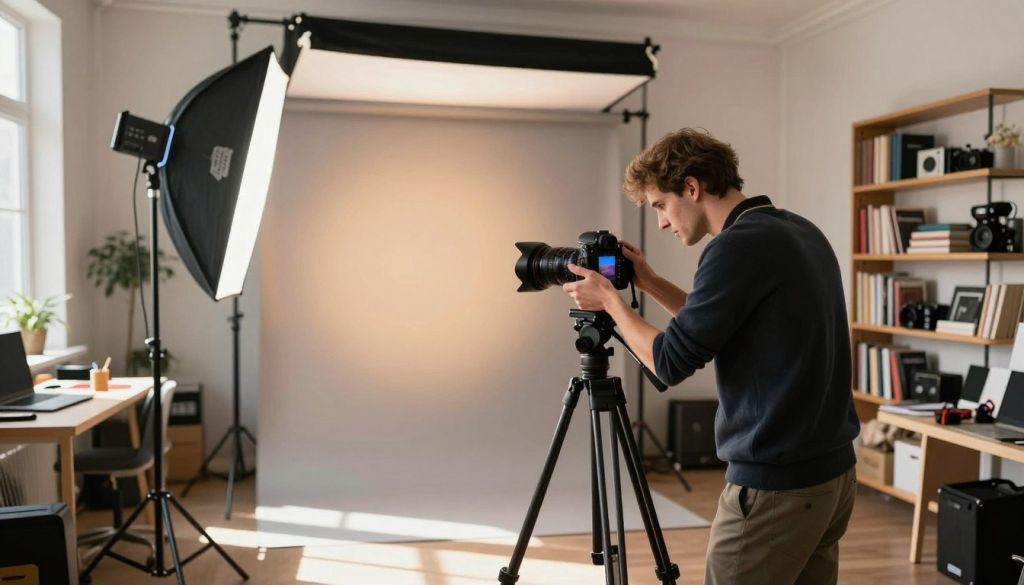
Use short lines for each exclusion so your models can balance what to include and what to avoid. That way, portraits show correct proportions and fewer distorted facial features.
“Tailored exclusions help Stable Diffusion capture authentic lighting and anatomy.”
- Filter out unrealistic proportions and distorted facial features.
- Prefer targeted phrases over long lists to keep quality high.
- Iterate quickly: small changes yield better realism in images.
| Issue | Suggested Exclusion | Expected Improvement | When to Use |
|---|---|---|---|
| Blurry details | blurry background, low res | Sharper edges, clearer texture | Portraits, close-ups |
| Wrong anatomy | poorly rendered hands, distorted facial features | Realistic limbs and facial symmetry | People-heavy scenes |
| Digital feel | 3d render, cartoon | Natural lighting, film-like realism | All photographic styles |
Optimizing Anime and Stylized Generations
Focus on precise exclusions to keep your anime art clean and faithful to the style you want.
When you generate anime images, use short exclusion lines that target specific issues. Add items like bad anatomy, bad hands, three hands, three legs, bad arms, missing legs, missing arms, and poorly drawn face.
These entries help Stable Diffusion avoid common pitfalls and reduce distorted limbs or odd faces in the final output. They keep the composition focused on the intended art style and boost overall quality.
Use the exclusions sparingly and test one change at a time. That way you preserve desirable elements and avoid over-filtering the content. Iteration will lead to steadier generation and more consistent images.
- Keep lines short and specific for best results.
- Test variations to match your preferred anime aesthetic.
- Apply the same list across similar scenes to save time.
| Issue | Suggested Exclusion | Benefit |
|---|---|---|
| Extra limbs | three hands, three legs | Removes duplicated arms/legs |
| Poor facial drawing | poorly drawn face | More accurate expressions |
| Broken anatomy | bad anatomy, bad arms | Correct proportions and posture |
Refining Facial Features and Expressions
Fixing odd facial traits in Stable Diffusion output means telling the model which flaws to ignore.
In this 1 min read, you’ll learn a compact set of exclusions that improve portrait realism and facial symmetry. Use these lines as a targeted negative prompt to cut fused or cloned faces and boost overall quality.
Fixing Facial Symmetry
Start by adding concise entries like “asymmetrical”, “fused face”, and “cloned face.” These help the model avoid mismatched halves and odd anatomy in a portrait.
Tip: Keep each item short so stable diffusion balances inclusion and exclusion without over-filtering.
Skin Texture Improvements
To avoid common issues such as “unrealistic skin texture” or “worst face,” include those exact terms. That directs the output away from plastic or blotchy skin.
Also filter “poorly drawn face” and “bad face” to protect eyes and small facial elements. These exclusions help your images show lifelike expressions and defined details.
“Refining your prompt is the fastest way to cleaner portraits and fewer iterations.”
- Apply the following negative prompts: “poorly drawn face”, “bad face”, “fused face”, “ugly face”, “worst face”, “asymmetrical”, “unrealistic skin texture”.
- Test one change at a time to keep desired features intact.
Correcting Common Hand and Finger Artifacts
Fixing hand and finger errors is one of the quickest ways to lift overall image quality.
Hands often show extra digits, fused fingers, or malformed limbs. These artifacts break realism and draw attention away from your subject.
Use a short exclusion line that targets these problems. Try terms like “extra digits”, “extra arms”, “extra hands”, “fused fingers”, “malformed limbs”, “mutated hands”, and “poorly drawn hands”.
- These effective negative prompts guide Stable Diffusion to ignore faulty elements in the scene.
- Including “extra digits” or “poorly drawn hands” helps filter common AI errors quickly.
- Consistent use improves hands and overall composition across multiple images.
“Focus on concise exclusions for hands to get cleaner, more anatomical results.”
| Issue | Suggested Exclusion | Expected Result |
|---|---|---|
| Extra fingers | extra digits | Correct finger count, natural pose |
| Joined fingers | fused fingers | Separated digits, clearer detail |
| Odd limb shapes | malformed limbs | Proper proportions, fewer artifacts |
Improving Eye Clarity and Anatomical Accuracy
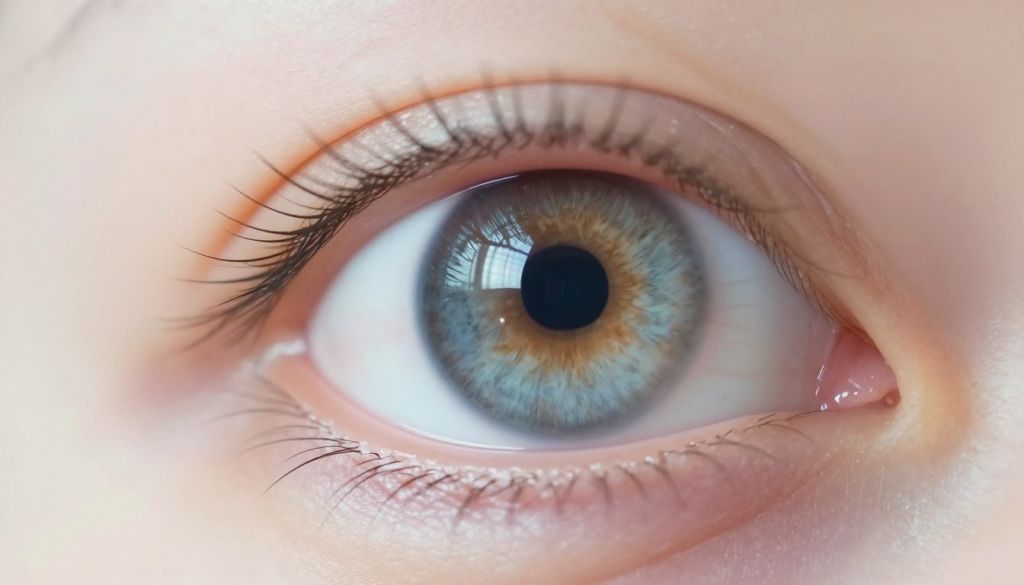
Eyes make or break a portrait; clear pupils and correct irises anchor realism.
Start with a focused exclusion line for eye issues. Add entries like “extra eyes”, “deformed pupils”, “deformed iris”, “cross-eyed”, “blurry eyes”, “missing eyes”, “unrealistic colors”. These terms stop common mistakes that pull attention away from the face.
The following short list shows how to tune your negative prompt for better detail and realism.
Achieving Realistic Pupil Detail
Using the listed exclusions helps you get realistic pupil detail and clearer eyes in a portrait. That clarity boosts overall image quality and expression.
- These entries help avoid anatomical inaccuracies that cause odd gaze or wrong reflections.
- Include “deformed pupils” or “cross-eyed” in your negative prompt to improve realism quickly.
- Refining this line ensures Stable Diffusion renders natural irises and consistent highlights.
“Clear, anatomically accurate eyes make your portraits feel alive.”
Managing Arm and Leg Proportions
Proportion errors in limbs are one of the quickest ways to undermine realism in a portrait.
When you generate figures, include a short list that targets common limb issues. Use entries such as “extra arms, missing arms, bad arms, disconnected arms, extra legs, missing legs, deformed legs”. These lines help Stable Diffusion focus on correct anatomy and natural posture.
Apply that small negative prompt section early in your workflow. It filters out odd elements that distract from the subject and improves overall image quality.
For best results, keep each item brief and test one change at a time. That reduces trial-and-error and maintains desired features like hands and eyes without over-filtering.
- Use short exclusion lines to avoid common limb artifacts.
- Consistent application improves realism across portraits and landscape scenes.
- Adjust words like “bad arms” or “deformed legs” if you still see issues.
“Clear limb exclusions let your models render true proportions and preserve facial focus.”
Utilizing Negative Embeddings for Better Results
Embedding triggers condense complex exclusions into a single, easy-to-use tag for your workflows.
What they do: Trigger embeddings act like compact filters for Stable Diffusion. A single tag can block many unwanted elements in your images. That gives you faster control and more consistent results.
Understanding Trigger Words
Trigger words are pre-trained tokens you add to a prompt. They capture layered concepts such as bad hands, fused fingers, or odd text.
Using an embedding replaces long exclusion lists. This makes iteration quicker and keeps quality steady across generations.
Popular Embedding Models
Well-known embeddings include EasyNegative, FastNegativeV2, and realisticvision-negative-embedding. Others are negative_hand, NEGATIVE_HANDS, NegativeDynamics, and deep_negative_pony.
- These effective negative prompts are pre-trained to capture complex issues.
- They help you avoid fused fingers, disconnected limbs, and stray text.
- Incorporate the best negative tools into your workflow for professional results.
“A single trigger can cut iteration time and lift final image quality.”
Controlling Model Attention with Prompt Weights
By tuning attention weights you shape which elements the model favors during a run.
Use parentheses to boost a token: write a (word:1.5) to increase attention on that term. This raises its influence and helps steer the final image toward the detail you want.
You can also switch lines mid-run with step syntax such as [word:word:step]. That changes focus over time and gives you precise control of how the model responds during sampling.
Apply this when a short exclusion line or a negative prompt must be stronger at specific steps. Boost key words early, then ease them later to refine composition without re-running the whole job.
- Increase a token to emphasize texture, pose, or lighting.
- Use step switching to move attention from background to face.
- Small weight tweaks save time and improve final quality.
“Mastering weights gives you fine control so each element receives the right attention.”
Enhancing Final Image Quality with External Tools
Upscaling and enhancement tools can turn a good render into a professional asset.
Aiarty Image Enhancer helps you batch upscale images from 1024px to 2K, 4K, or 8K. You get restored realism in skin, hair, and fabric without obvious artifacts.
Use the enhancer to control how much sharpening and texture restoration you apply. This gives you full control over intensity so your visuals stay natural and polished.
Upscaling for Professional Clarity
Integrate the tool into your workflow after generation. It solves the default resolution limits many models impose and preserves fine details for print or large displays.
- Batch upscale many images at once to save time.
- Restore realistic skin, hair, and fabric detail for higher quality results.
- Adjust enhancement levels so images remain true to your art and content.
“Upscaling keeps every detail while lifting images to professional clarity.”
Conclusion
Master these exclusion techniques, and you’ll get cleaner visuals and faster results.
Apply the methods in this guide to refine your content and raise image quality. Use the recommended toolchain to save time and fix common artifacts in each run.
Consistent use will improve clarity across projects. Treat refinement as an ongoing practice; small edits compound into big gains.
This is a quick min read wrap-up: practice these steps, test variations, and you’ll take full control of your AI art workflow.
FAQ
What are negative prompts and how do they help you eliminate AI artifacts?
Negative prompts are terms or phrases you include to tell the model what to avoid. When you use them deliberately with tools like Stable Diffusion, you reduce unwanted elements such as extra limbs, distorted faces, or unnatural textures. Use concise, specific exclusions to steer generation away from common artifacts and improve overall image fidelity.
How does Stable Diffusion interpret negative guidance in a prompt?
Stable Diffusion treats negative guidance as constraints that lower the probability of unwanted tokens during sampling. You guide the model away from particular visual features by assigning them lower weight or listing them in the exclusion section. Combining this with attention control and prompt balancing improves the likelihood of more accurate results.
Which exclusions are essential for general image quality?
Focus on common visual faults: extra limbs, fused fingers, malformed teeth, incorrect anatomy, text artifacts, and low-resolution texture. Add concise exclusions for blurry faces, jpeg artifacts, and oversaturated colors. This reduces the need for heavy post-processing and yields cleaner base images for upscaling.
How can you maintain safety standards when working with sensitive content?
Apply content filters and explicit exclusions for disallowed subjects. Use trusted models and embeddings that include safety constraints. If you operate a public tool, enforce automated moderation, rate limits, and clear user guidelines to prevent misuse while keeping generation focused and compliant.
What adjustments help make generated images look like realistic photography?
Exclude stylized artifacts such as exaggerated line work, cel shading, and anime proportions. Add prompts that favor natural camera effects (depth of field, realistic lighting, correct skin tones) while removing painterly or overly smooth textures. Use photographic reference terms and upscalers tuned for photo realism.
How do you tailor exclusions for anime or other stylized art?
For stylized work, remove photographic artifacts like noise or photographic bokeh while preserving stylistic traits. Exclude realistic skin pores, incorrect facial anatomy, or accidental hyperrealism. Keep style-specific constraints clear so the model honors the intended aesthetic.
What negative guidance helps fix facial symmetry issues?
List precise facial faults to avoid: asymmetrical eyes, misaligned mouths, extra facial features, and warped proportions. Combine those exclusions with positive anchors like “realistic facial symmetry” and use reference images to guide the model toward consistent, balanced faces.
How do you improve skin texture without creating plastic or overly smooth results?
Exclude terms like “plastic skin,” “wax-like,” and “oversmoothed texture.” Instead, promote natural skin detail by including “subtle pores,” “realistic skin texture,” and correct lighting. Use high-quality datasets or embeddings that favor photorealistic microdetail and avoid over-aggressive denoising.
What are effective exclusions to correct hand and finger artifacts?
Hands often need targeted exclusions: extra fingers, fused digits, malformed joints, and incorrect palm structure. Use short, direct phrases to exclude these faults and consider adding “reference hand pose” or guided inpainting where precise hand anatomy matters.
How can you improve eye clarity and anatomical accuracy?
Exclude common eye problems such as mismatched pupils, lack of reflections, or asymmetrical irises. Encourage realistic pupil detail, correct sclera shading, and natural catchlights. Combining these exclusions with close-up references or face crops helps the model focus on eye anatomy.
What helps you achieve realistic pupil detail?
Add exclusions for flat, textureless irises, incorrect pupil shapes, and unnatural coloring. Pair that with positive guidance like “detailed iris texture,” “accurate pupil shape,” and subtle specular highlights. Higher-resolution conditioning and specialized upscalers also preserve tiny eye details.
How do you manage arm and leg proportions to avoid distortion?
Exclude terms describing unnatural length, extra joints, and merged limbs. Use pose references or skeleton guides in conditioning, and include constraints like “natural limb proportions” or “correct joint placement.” When possible, leverage pose-conditioned models for improved anatomical results.
What are negative embeddings and how do they improve final outputs?
Negative embeddings are pretrained vectors that encode unwanted concepts for easy exclusion during generation. You apply them alongside your prompt to suppress recurring artifacts or styles. They’re useful for enforcing consistent avoidance across many generations without repeating long exclusion lists.
Which trigger words should you understand when using embeddings?
Trigger words are short tokens that activate particular embeddings or behaviors. Learn commonly used triggers that correspond to artifact types—such as terms that unintentionally encourage stylization or text artifacts—and avoid or counter them with negative embeddings to maintain control.
Which embedding models are popular for reducing artifacts?
Several community and research embeddings target common problems—look for ones focused on anatomy fixes, face correction, and artifact suppression. Choose well-documented, actively maintained embeddings compatible with your model version to ensure predictable behavior.
How can you control model attention using prompt weights?
Use explicit weighting syntax to emphasize or de-emphasize parts of your prompt. Increase weight on desired attributes like “realistic lighting” and lower weight on terms you want to minimize. Balance is key: over-weighting can produce bias, while under-weighting may render exclusions ineffective.
When should you use upscaling and other external tools to enhance final quality?
Apply upscalers and denoisers after generation when you need professional clarity or print-ready resolution. Use tools optimized for preserving facial detail and avoiding oversharpening. External editors like Gigapixel AI or ESRGAN variants complement prompt-based corrections by refining texture and reducing residual artifacts.