How much control do you really need to master explicit content creation without guesswork?
The answer lies in a clear tour of the interface you use every day. This guide walks you through each control so you know what every button does and why it matters for your results.
With a 4.8/5 user rating as of April 2026 and over 5M+ images created, the platform proved its value to creators who demand both freedom and precision.
You will learn how to manage lighting, styles, prompts, and privacy settings. The walkthrough covers plans, restrictions, and the key tools that affect output quality and generation speed.
By the end of this short tour, you’ll have no more questions about using every button to maximize your creative output and protect your privacy.
Key Takeaways
- Understand every control that impacts content creation and final results.
- Learn how lighting, styles, and prompts shape output quality.
- See why a 4.8/5 rating and 5M+ images matter for reliability.
- Review privacy options and plan choices to protect your work.
- Gain practical tips to speed up generation while keeping creative freedom.
Understanding the NSFWAI Plus Ecosystem
Explore how a focused ecosystem gives you tools and models that prioritize artistic freedom.
Defining Uncensored AI
The ecosystem uses open-source models, including Stable Diffusion, to power an uncensored experience. This setup differs from mainstream platforms by removing many common filters.
That approach lets the platform support mature content while keeping ownership and security clear for you.
The Role of Creative Freedom
By lifting arbitrary restrictions, the generator empowers creators to explore diverse art and themes.
You get dedicated tools designed for mature projects, not diluted feature sets from platforms like big tech offerings.
- Open models drive flexibility.
- Fewer restrictions expand creative range.
- Secure ownership keeps your work private and portable.
| Feature | What it means | Why creators choose it |
|---|---|---|
| Open Models | Stable Diffusion and forks | More control over outputs and fine-tuning |
| Uncensored Workflow | Minimal content filters | Allows mature themes and niche art |
| Security | User-controlled privacy | Protects projects and monetization |
Getting Started with Your NSFW AI Image Generator Tutorial
Start by creating an account and picking settings that match your project goals.
Sign up and choose a model. Pick a build like Stable Diffusion or platforms like it to match your style needs. This choice shapes speed, resolution, and creative freedom.
Set basic options before you generate. Choose canvas size, sampling steps, and a safety toggle. Test small drafts to learn how prompts change results.
Common questions usually ask how to avoid content blocks or get consistent lighting. Use clear prompts and fixed seeds when you want repeatable images.
- Start with low resolution for quick previews.
- Adjust style presets for landscape, portrait, or stylized work.
- Keep prompts concise and focused on mood and detail.
| Step | Setting | Why it matters |
|---|---|---|
| Account | Model selection | Controls quality and speed |
| Draft | Low res preview | Faster iteration |
| Final | High res output | Production-ready images |
Navigating the Core Interface Buttons
Quickly pin down the primary buttons that drive every creative step in the interface.
Once you log in, the top toolbar groups the main controls so you can move from prompt to product fast.
Image Generation Controls
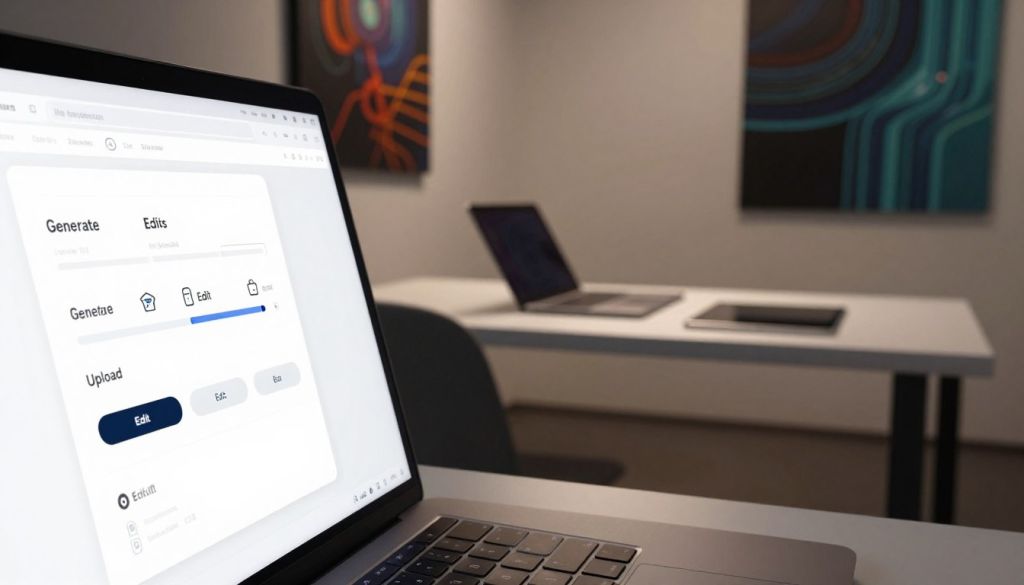
Generate opens a compact panel for prompts, resolution, and seed. Use the lighting and style sliders to tune mood and sharpness without rerunning drafts.
The preview button runs a quick low-res pass so you can tweak prompts and get predictable results.
Video Creation Modules
The video module appears as a separate tab with timeline buttons and motion presets. You can animate stills, adjust frame rate, and pick motion styles in one place.
Export options include short clips or looped MP4s, letting creators move from stills to animation with minimal setup.
Face Swapping Utilities
Face swap tools sit under a dedicated utility menu. Upload a reference, set blending strength, and preview results before finalizing.
Privacy controls and plan limits are shown in the same panel so you know which features are available to your account.
- Buttons are grouped by task: create, animate, swap.
- Sliders control lighting, styles, and fidelity.
- Previews speed iteration and reduce wasted runs.
| Control | Primary Use | Tip |
|---|---|---|
| Generate | Run prompt-based image generation | Use preview then high-res export |
| Video Tab | Animate stills and set frame timings | Choose motion presets for faster results |
| Face Swap | Replace or blend faces in photos | Adjust blend and check privacy settings |
Mastering Advanced Generation Settings
Fine-tuning resolution, lighting, and style presets is how professionals get repeatable results.
Start by choosing your target resolution. You can go up to 4K for professional-grade outputs that hold detail in prints and large displays.
Next, pick a style preset that matches your vision. Presets speed up the workflow and lock in consistent looks across multiple images.
Adjusting Resolution and Style Presets
Use advanced settings to balance image quality with generation speed. Higher resolution increases render time. Lower settings let you iterate faster.
Lighting controls shape mood without changing prompts. Subtle shifts in warmth or contrast make content look more professional.
- Set low-res previews for drafts, then switch to 4K for final exports.
- Save custom presets to reproduce the same styles across projects.
- Tweak sampling and fidelity to reduce noise while keeping speed acceptable.
| Setting | When to use it | Result |
|---|---|---|
| 4K Resolution | Final exports, prints | Highest detail and sharpness |
| Style Presets | Batch consistency | Uniform look across images |
| Lighting Sliders | Mood adjustments | Improved realism without re-render |
Exploring Specialized Creative Tools
Specialized creative modules let you move beyond single-frame work and explore motion, mood, and refined detail.
Video generation and motion presets let you turn stills into short clips without deep technical steps. Use the timeline controls to set pace, loop, or export a finished clip for social platforms.
The suite supports experimentation with lighting and style presets. Models like Stable Diffusion power advanced rendering, so you can test different art directions quickly.
These tools also help when you craft prompts for mature content. A focused prompt plus the right preset produces consistent images and videos for your portfolio.
The interface bundles face-blend, style transfer, and batch exports so creators can scale work fast. Features are intuitive, which keeps you focused on creative freedom rather than technical setup.
| Tool | Use | Tip |
|---|---|---|
| Video Module | Animate stills | Start with low frame count |
| Style Presets | Uniform look | Save custom styles |
| Face Blend | Replace or merge faces | Preview before export |
Comparing Performance Against Mainstream Platforms
Benchmarks and feature lists reveal practical differences that matter for creators.
Speed and Quality Benchmarks
Your workflow benefits when generation is fast and predictable. Our tests show an average generation time of ~15 seconds, which speeds up iteration and saves time.
Image quality holds steady across previews and final exports. For many NSFW projects, results were noticeably better than restricted mainstream platforms.
That consistency helps you produce more images with less rework and fewer wasted credits.
Feature Set Comparison
The platform combines flexible plans, strong privacy options, and fewer restrictions than many mainstream platforms.
- Privacy: user controls and export protections.
- Plans: tiered access to high-res and video features.
- Restrictions: looser limits for mature content while keeping legal safeguards.
“You get faster results and better image quality for specialized NSFW creation without losing control over privacy.”
| Metric | This Platform | Mainstream Platforms |
|---|---|---|
| Average generation time | ~15s | 20–45s |
| Support for NSFW content | Yes (fewer restrictions) | Often limited or blocked |
| Privacy & plans | User-controlled options | Generic tiers, stricter policies |
| Video & advanced tools | Built-in video and face tools | Separate or absent modules |
In a crowded landscape of tools, this generator and its stable diffusion roots stand out for speed, consistent results, and creator-focused features.
Best Practices for Crafting Effective Prompts
Clear, focused prompts are the single biggest factor in getting consistent, high-quality results from this platform.
Start by naming the art style, lighting, and composition you want. Short, concrete phrases work better than long paragraphs. For example: “portrait, studio lighting, cinematic framing, photorealistic art style.”
Use negative phrases to exclude unwanted elements. Say “no props, no text, avoid blur” to refine the final content. That prevents common issues and saves credits during generation.
Describe complex scenes with simple building blocks: subject, mood, setting, and camera angle. Mention Stable Diffusion when you want consistency across batches.
- Test small: run low-res previews before final exports.
- Save presets: lock your favorite styles and lighting.
- Use tools: negative prompts and fixed seeds reduce variability.
| Focus | Example | Benefit |
|---|---|---|
| Style | Photorealistic, painterly | Better image quality |
| Lighting | Warm rim light, soft shadows | Consistent mood |
| Negative prompts | No text, no artifacts | Cleaner images |
Mastering prompts gives you freedom to produce professional-grade images and consistent results. Use these best practices and the platform’s features to make content that matches your vision.
Ensuring Privacy and Data Security
Protecting your creative files is as important as crafting them. The platform uses strong encryption and clear access controls so your work stays private. You should know how those protections work before you export or share any content.
Encryption and Content Protection
End-to-end encryption ensures that only you can view your nsfw content and derived images. Files are encrypted in transit and at rest, so the platform cannot read or leak your drafts.
Respect for consent matters. Do not create depictions of real people without explicit permission. That protects subjects and helps you avoid legal risk.
- The platform prioritizes privacy with built-in safeguards and secure tools.
- Your images remain private and are not shared publicly by default.
- Follow consent best practices when you reference real people.
Use these security practices to focus on creative work and feel confident your video or image projects are protected. The platform’s commitment to privacy is a key feature that sets it apart.
Monetization Opportunities for Digital Creators
With clear rights and fast production, you can convert art into steady income streams.
12,500+ creators use this platform, so paid plans and built-in features are designed for creators who sell work. The platform grants commercial rights on select paid plans, letting you license or sell images and video without extra steps.
Use the generator and its tools to scale content production. Many creators report a 2–3x increase in output when they standardize style and prompts. That consistency helps when you sell subscriptions or exclusive bundles.
Build recurring revenue by offering character sets, themed packs, or weekly drops. High-quality assets and reliable results let you compete in adult art markets and subscription services.
| Monetization Path | How to Use It | Why It Works |
|---|---|---|
| Subscriptions | Deliver regular image bundles or video clips | Predictable income; rewards consistency |
| Licensing | Sell commercial rights via paid plans | One-time or recurring fees for quality assets |
| Patrons & Commissions | Create custom characters with saved presets | Higher rates for unique, repeatable work |
- Save presets to produce consistent art fast.
- Use paid plans for commercial rights and higher quality exports.
- Protect privacy while monetizing with secure export controls.
Turn your creative freedom into a business by combining reliable workflow, the platform’s capabilities, and focused marketing. Small, repeatable wins scale into steady earnings.
Navigating Ethical and Legal Responsibilities
Responsible creation starts with clear limits and strong consent practices.
Never create content involving minors or illegal acts. Platforms and the law ban that completely. Violations carry severe legal and account penalties. You must stop if a prompt or reference risks underage material.
Always get clear consent before referencing real people. Do not publish non-consensual or exploitative work. Using tools like Stable Diffusion does not remove your responsibility to respect rights and privacy.
The platform enforces these rules through automated checks and policy teams. Follow your paid plans and terms of service to stay compliant. Creative freedom ends where harm or illegality begins.
Keep ethics central to content production and community trust. Your actions affect other creators and the broader landscape of platforms and creators.
- Follow legal bans and platform restrictions at all times.
- Obtain consent for any depiction of real people.
- Use paid plans and settings to verify allowed uses and privacy.
| Responsibility | What it means | Action you should take |
|---|---|---|
| Prohibition of minors | No content with minors or ambiguous ages | Stop; verify ages and remove risky prompts |
| Consent for real people | Do not create non-consensual depictions | Obtain written consent and document it |
| Platform enforcement | Automated checks and policy teams | Follow terms, appeal through support if needed |
| Legal & ethical limits | Creative freedom within law and community standards | Use paid plans and privacy tools correctly |
Conclusion
This final recap ties the interface controls to practical steps you can use right away.
You explored the essential buttons and settings that shape your workflow. Use presets, previews, and privacy toggles to work faster and keep results consistent.
Prioritize privacy and follow legal and ethical standards. Always obtain explicit consent when you reference real people. That protects you and your subjects.
If you have any questions about specific features, check the platform documentation or support center. Clear guides and examples are available to help you master each tool.
Use the tips here to produce better work with confidence. Practice prompts, save presets, and respect policies to scale your creative output responsibly.
FAQ
What is NSFWAI Plus and what does its interface do?
NSFWAI Plus is a platform that lets you create adult-oriented visual content with tools for stills, clips, and face replacement. The interface groups features into easy panels: a prompt area, style presets, resolution controls, and export settings. You’ll find preview windows, history, and quick-access buttons for rendering, cancellation, and post-processing. The layout aims to speed up creative workflows while keeping controls discoverable.
How does the ecosystem differ from mainstream services like Midjourney or Stable Diffusion?
The ecosystem focuses on fewer content restrictions and deeper creative controls than mainstream services. Compared with Midjourney or Stable Diffusion deployments, it offers specialized modules for full-motion production, face swapping, and uncensored outputs, plus tiered compute for faster renders. Expect different moderation rules, varying legal obligations, and distinct pricing for higher fidelity or video features.
What does "uncensored" mean on this platform?
“Uncensored” refers to relaxed content filters that allow explicit material within the service’s policies. It does not remove legal or ethical responsibilities: you must still follow laws, obtain consent for real people, and avoid protected classes or illegal content. The platform typically documents boundaries in its terms and enforces checks for minors and non-consensual scenarios.
How do I get started creating content on NSFWAI Plus?
Create an account, verify your identity if required, and choose a plan that matches your needs—free tiers often limit resolution and exports. Use the onboarding tour to learn the main panels, load a preset, and run a low-resolution test render. Then experiment with style and lighting settings before exporting high-quality files.
What are the core interface buttons you should know?
Core buttons include Render/Generate to start production, Stop to cancel jobs, Save/Export for downloads, and Presets to load saved looks. You’ll also use sliders for resolution and sampling, a seed field for reproducibility, and toggles for face-swap or video modules. Tooltips and a history panel help you track changes.
How do the video creation modules work compared to stills?
Video modules stitch frames generated at set frame rates and motion parameters. You can set duration, keyframe prompts, and motion smoothing. Video rendering uses more compute, so expect longer queues or higher costs. Look for options to export MP4 or GIF and for post-processing tools like stabilization and color grading.
What should I know about face swapping utilities?
Face swapping tools map a source face onto a target image or clip using alignment and blending controls. Always get explicit, documented consent from anyone whose likeness you use. The tools often include identity protection toggles, mask controls, and quality sliders to reduce artifacting while preserving realism.
How do you adjust resolution and style for better results?
Increase pixel dimensions and sampling counts for cleaner details, but balance these with render time and cost. Use style presets for consistent looks—select cinematic, photoreal, or painterly as starting points, then tweak lighting, color temperature, and texture strength. Run small previews before full renders to save time.
What specialized creative tools are typically available?
Expect pose guides, reference image fusion, body morph controls, hair and wardrobe presets, and lighting rigs. Some platforms add inpainting, background replacement, and batch processing. These tools help you refine composition, correct errors, and maintain coherent series across multiple outputs.
How does performance compare with major platforms in speed and quality?
Speed depends on queued compute and plan level; higher-tier accounts usually get priority rendering. Quality varies by model architecture—some proprietary models aim for higher fidelity in explicit content than general-purpose models. Benchmarks often show trade-offs: faster services may compress detail, while quality-focused options take more time and cost more.
What features should you compare when choosing a platform?
Compare content policies, pricing tiers, export formats, model quality, video support, face-swap robustness, and privacy options. Also check community tools, API access, and whether the provider offers commercial licenses for paid work.
How do you craft prompts that produce better outcomes?
Be concise and specific. State subject, pose, wardrobe, lighting, and camera angle. Use negative prompts to strip unwanted artifacts. Reference known styles or photographers for a desired aesthetic. Iteratively refine prompts using small previews and note which modifiers affect results most.
What privacy and data security measures should you expect?
Look for end-to-end encryption for uploads, secure storage, and clear retention policies. Platforms should offer content deletion, private projects, and options to opt out of model training. Review the privacy policy for how likenesses and uploaded media are handled.
Does the platform offer monetization paths for creators?
Yes. Many services enable storefronts, paywalled galleries, or direct licensing. You can sell commissions, offer subscriptions, or license bundles of work. Check the revenue split, payout thresholds, and commercial license terms before publishing paid content.
What legal and ethical responsibilities do creators have?
You must verify age and consent for any real-person likeness, avoid copyrighted faces without permission, and steer clear of illegal depictions. Maintain clear release forms, respect privacy, and follow local and platform laws. When in doubt, consult a lawyer for commercial projects.
Are there paid plans and how do they change capabilities?
Paid plans usually add higher resolution, faster queues, priority support, commercial licensing, and video credits. Enterprise tiers may include dedicated instances, advanced privacy controls, and API access for bulk production. Choose a plan based on output volume and needed features.
Can you create realistic people and what are the risks?
The platform can create very realistic subjects, but you must avoid creating identifiable images of private individuals without consent. Realism raises risks of misuse, defamation, and privacy violations, so implement consent procedures and clear labeling for synthetic works.
How do you ensure consistent style across multiple outputs?
Save and reuse style presets, seeds, and reference images. Use batch processing with fixed parameters for resolution and sampling. Keep a changelog of prompt variations so you can reproduce or iterate on looks reliably.
Where can you get help or support when you run into issues?
Most platforms offer documentation, community forums, and customer support. Premium plans include priority support and dedicated onboarding. Use official guides for troubleshooting artifacts, export errors, or account questions.