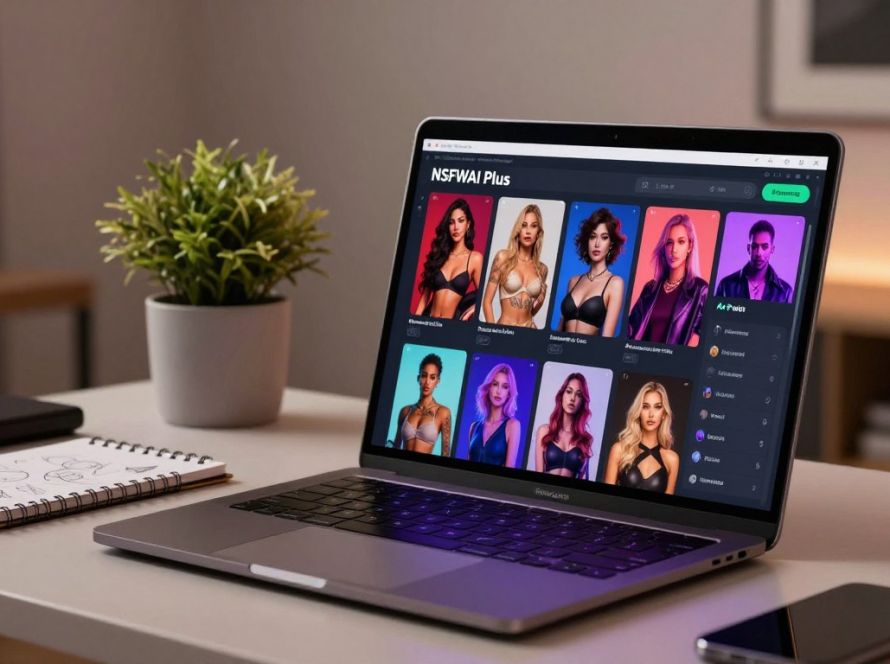
Curious how a single line of text can become a striking, uncensored character image? This guide shows you how the NSFW mode in NSFWAI Plus turns simple prompts into polished artwork and video-ready scenes.
You’ll learn how the platform gives you tools to shape characters, pick styles, and refine images with fast generation tech. The market for such creative image tools is expanding, with demand expected to grow dramatically by 2030.
The process is simple for beginners and powerful for pros. You type text, choose preferences, and let the platform build detailed artwork. You can export static images or short video clips for sharing.
Whether you want bold styles or subtle animation, this section will help you start using NSFWAI Plus to push your creativity and craft unique characters with confidence.
Key Takeaways
- The platform converts text prompts into high-quality art and images.
- Tools simplify creation for both beginners and experienced users.
- You can produce static characters or short video content.
- Advanced generation tech supports complex animation styles.
- The system encourages creative freedom beyond traditional limits.
- Export and share custom artwork with a global community.
Getting Started with the NSFW Anime AI Generator
Start by typing clear, visual descriptions to shape the character and style you want.
Begin with a concise prompt that lists pose, outfit, facial features, and mood. This gives the tool context and helps the platform produce high-quality image and artwork outputs quickly.
Upload reference images when you need consistency. The platform will match colors, proportions, and details across multiple generations so your characters stay recognizable.
“Detailed prompts save time and reduce trial runs, especially when you plan to convert stills into video.”
- Type descriptive text to define styles and character traits.
- Unlike mainstream tools that block explicit content, this platform supports uncensored nsfw art and nsfw content generation.
- Experiment with different styles and export images or short video clips.
| Step | What to Do | Why It Helps |
|---|---|---|
| 1. Write a Prompt | List pose, outfit, and mood in one sentence | Gives clear direction for image and artwork generation |
| 2. Upload Reference | Attach a photo or sketch of your character | Ensures consistent character details across images |
| 3. Choose Style | Select from presets for linework and color | Makes output match the desired aesthetic |
| 4. Export | Save images or convert sequences to video | Bring characters to life and share final content |
Mastering Anime Mode Features and Settings
Control panels give you access to tags, resolution, and fine-detail sliders for precise output.
Character Tagging Systems
Tagging lets you lock in traits so each image fits your vision. NovelAI’s Danbooru-style tags provide precise, text-based control for facial features, poses, and accessories.
When you master tags, you reduce trial runs and keep characters consistent across generations.
SoulGen tops out at 1024×1024, which is fast and social-ready. ZenCreator offers 4K at 4096×4096 for print-grade detail.
Use lower resolution for quick previews and higher settings when you need crisp linework and rich color. Advanced sliders let you tweak shading, line thickness, and color consistency.
“Refining settings early ensures better results and saves time during video production.”
- Use tags to define traits and keep character design consistent.
- Choose 1024×1024 for social posts; pick 4K for high-quality prints.
- Adjust linework and shading to match preferred styles and studio looks.
- Export stills or use the video pipeline to turn images into short, high-definition clips.
Crafting Effective Prompts for High-Quality Art
Clear, structured prompts turn vague ideas into consistent, high-quality character art.
Using Style Presets for Consistent Aesthetics
Start by naming the look you want. Pick a preset for linework, color palette, and shading. Style presets lock a visual baseline so each image in a series shares the same aesthetic.
Combine specific descriptors for pose, clothing, and background to guide generation. Use Danbooru-style tags when available; they let the system interpret structured character traits precisely.
- Write concise text that lists key details: hair, eyes, outfit, and mood.
- Apply a preset to keep images uniform across scenes and iterations.
- Refine wording after each run to improve match to your vision.
- For video, add motion cues and timing notes to the prompt so generation respects intended movement.
| Prompt Element | Effect on Output | Practical Tip |
|---|---|---|
| Character traits | Defines facial features and pose | Use Danbooru tags for repeatable results |
| Style preset | Sets lineweight, color, and shading | Choose a preset early for series consistency |
| Motion cues | Guides video generation and timing | Specify action and duration in the prompt |
“Refined prompts save time and yield higher-quality images and video.”
Comparing Performance and Output Capabilities
Choosing the right platform changes how your explicit scenes read, move, and hold detail.
When you compare results, focus on pass rate, image fidelity, and video support. In tests using 15 standardized prompts, ZenCreator reached a 100% pass rate across ecchi, nude, and explicit hentai categories. That consistency matters if you plan to scale production or deliver client work.
Ecchi and Softcore Generation
Most platforms handle ecchi and softcore art reliably. You will see high-quality images and good detail for outfits, poses, and facial expressions.
For consistent anime characters, choose models tuned for line clarity and color balance. Pony Diffusion V7 on CivitAI is widely used for professional-grade results.
Handling Explicit Content
Some tools enforce strict filtering; others permit fully graphic content. This difference is a key factor when you need explicit scenes for a project.
ZenCreator and similar platforms that allow broader content will save you time and trial runs when producing adult material.
Anime Accuracy and Linework
Accuracy hinges on clean linework and consistent coloring. Top checkpoints produce correct anatomy and repeatable character details across images.
Advanced video generation then animates those stills so your characters move with natural timing and preserved styling.
| Feature | Top Performer | Why It Matters |
|---|---|---|
| Explicit pass rate | ZenCreator (100% in test) | Reliable output for adult content and fewer re-runs |
| Model quality | Pony Diffusion V7 (CivitAI) | Superior linework and color consistency for anime art |
| Video support | High-tier platforms | Turns images into smooth clips while keeping style |
| Softcore handling | Most popular tools | High success rate and detailed image results |
“By testing standard prompts across platforms, you can pick the tool that best matches your workflow and output needs.”
Conclusion
A strong workflow balances resolution needs, content support, and ease of use.
Choose platforms that match your goals: high-res 4K output, reliable explicit content support, or fast image previews for iteration. That choice shapes how your characters and art scale from static frames to motion.
Master prompt phrasing and style presets to keep visuals consistent across runs. Test different tools and export short video clips to vet motion and timing before big projects.
As the market grows, expect better generation features and more powerful tools. Experiment, document your settings, and pick the setup that fits your workflow and production needs.
FAQ
What is the Anime Mode in NSFWAI Plus and how do you access it?
Anime Mode is a dedicated setting that optimizes the tool for stylized character artwork and illustration. To access it, open the platform, choose the creative workspace, and select the Anime Mode option from the style or mode menu. You’ll see presets and toggles that adjust linework, color palettes, and pose fidelity for illustration-focused output.
How do you set up your first prompt for character-focused images?
Start with a clear subject description: character age range, outfit, pose, and expression. Add a short note about composition and background. Use a style preset if you want consistent aesthetics. Keep prompts concise and avoid repeating the same descriptors to maintain keyword density and clarity.
What are character tagging systems and how do they help?
Character tags let you label traits like hair color, eye shape, outfit elements, and personality cues. Tags improve consistency across multiple renders and make it easier to recall a character’s look. Use a combination of required tags and optional modifiers to balance control and variety.
How do resolution and detail controls affect final images?
Resolution settings determine canvas size and detail level. Higher resolution gives crisper linework and finer textures but increases render time and resource use. Detail sliders adjust shading, highlights, and small features; raise them for polished illustrations, lower them for faster, sketch-like results.
When should you use style presets for consistent aesthetics?
Use presets when you need a unified look across a series—such as a character lineup or sequential panels. Presets lock in color grading, line thickness, and shading approach so each render matches the established visual identity without repeating extensive prompt text.
How does the tool handle ecchi and softcore outputs?
The platform provides controls to limit or permit suggestive content. Softcore or ecchi-style illustrations focus on implied sensuality, costume design, and playful posing rather than explicit depiction. Use the content filters and style options to define the level of suggestiveness you want while remaining within platform rules.
What safeguards exist for explicit material and content compliance?
The system includes moderation filters and policy settings to block or flag explicit content. You can enable stricter filtering to prevent explicit generation, and most platforms log and review flagged outputs for compliance. Always review the platform’s terms and local regulations before creating adult-themed work.
How accurate is the tool with linework and traditional animation styles?
Linework accuracy depends on model tuning and selected brushes or style presets. When you choose presets that emulate traditional cel or ink styles and pair them with higher detail and resolution, you’ll get clearer, animation-ready lines. For complex poses, combine reference images and pose tags to improve anatomical fidelity.
How do you iterate on a result to improve character consistency across images?
Save successful renders as references, capture the tag set used, and reuse or refine those tags in subsequent prompts. Locking certain attributes—like hairstyle, outfit, or color scheme—while varying pose and background helps maintain consistency without repeating full descriptions.
Which platforms or tools integrate well for post-processing and animation?
Popular tools you can pair with generated images include Adobe Photoshop for touch-ups, Clip Studio Paint for line refinement and panel layout, and Spine or Live2D for simple rigging and animation. Export high-resolution files and keep layers intact when possible to simplify editing and motion work.
How can you speed up generation while preserving quality?
Use medium resolution with high-detail presets selectively: reserve maximum settings for final renders and use faster presets for drafts. Caching reference assets and reusing established tag sets also reduce time spent rewriting prompts. If available, choose accelerated compute options or batch-generation workflows.
Are there recommended best practices for prompt wording to avoid repetition and improve SEO?
Keep language varied and direct: alternate synonyms for common descriptors and limit repeated keywords to stay within density targets. Use short, focused sentences and prioritize the most important attributes first. This keeps prompts efficient and improves the clarity of your instructions.